
A .Net developer’s note
This is a practice project I built to try Vue.js, and it’s also one of the starts points in the effort to facelift some of our old ASP.Net applications.
Prepare develop
environment for Vue.js
Outside of the MS world, there are so many different things.
Install node.js
First needed is node.js, a JavaScript run time environment.
Go to nodejs.org, download LTS
node-v10.14.1-x64.msi,
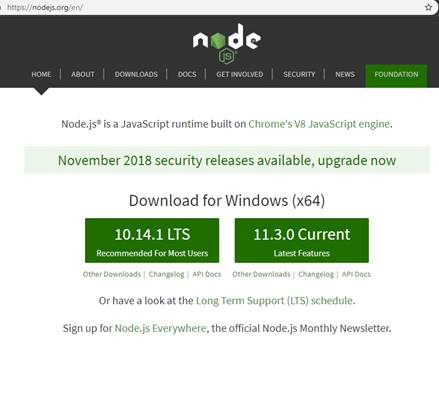
and install it
.

Together with node.js is npm, a package manager.

After installation, open a command window, try a few commands to verify nodejs and npm installed.

Install vue-cli
Vue-Cli is a command line interface, it provides command to
quickly generate Vue projects. For this purpose, I use vue-cli
2: https://github.com/vuejs/vue-cli/tree/v2#vue-cli–
There is a recommended newer version Vue CLI 3.
Download and install vue cli, type this in command window:
npm install -g vue-cli

We now have what we need to start Vue project.
Create an ASP.net MVC project.
Use Visual Studio create a new .Net MVC project.
Create MVC
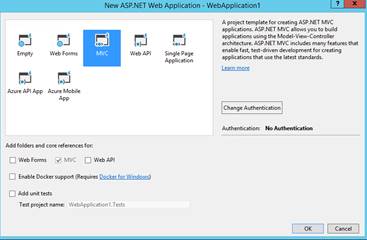
Create a new ASP.Net web application, with Framework 4.6, and then select the MVC template.

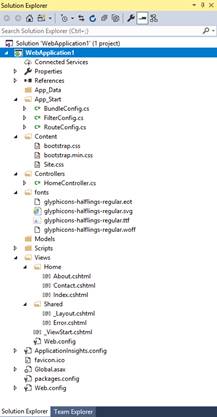
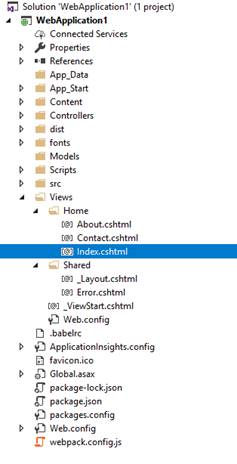
MVC template generates following structure and files.
Run MVC application
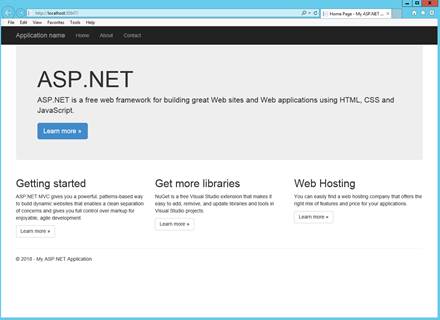
Run the application as is, here is the result.
Create a Vue project
Create a Vue project in the same folder of MVC project.
Open command window to
project folder
One way to do this:
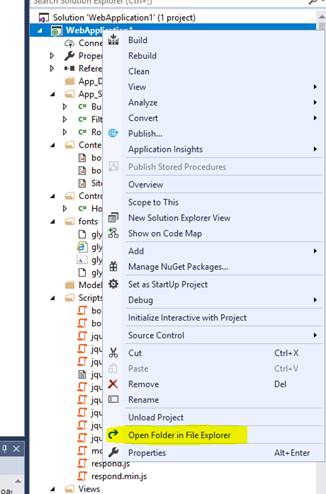

Type cmd in the address window and press enter

That will bring up …

Generate Vue project using
cli
In the command window, type:
vue init webpack-simple
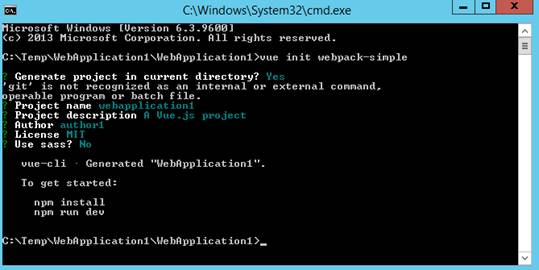
Note.
Official description of webpack-simple: A simple Webpack + vue-loader setup for quick prototyping.
Answer vue command questions, not use sass for now.
Back in VS, click on show all files, see new directory and files generated by vue-cli.

Run the generated Vue app.
All the dependencies need to be installed before running Vue app, type in command window:
npm install
It will download and install packages defined in package.json,
for people never used npm, this is similar to restore nuget packages.
This will take a while. A new Node_modules directory and package-lock.json file get created during this process.
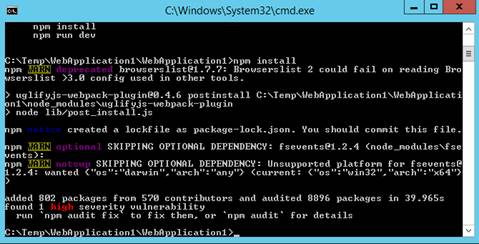
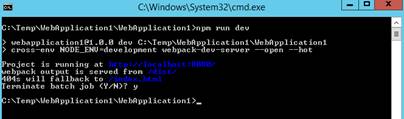
When done, type: npm run dev

This will run Vue app in develop mode, use node http server and bring up default browser.
Showing this:

Back in command window, type CTL-C to stop develop server
At this point, we basically have two projects, an ASP.Net MVC and an Vue.js in the same directory. They all work as expected independently.
Merge Vue app into MVC
project
Now try to merge them together.
Create a production build
of the Vue app
In command window, type:
npm run build
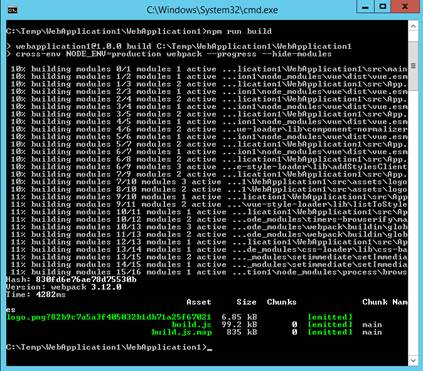
This will create a dist folder
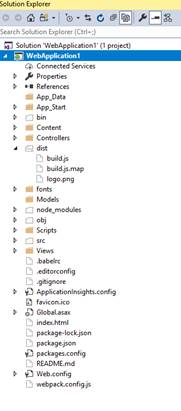
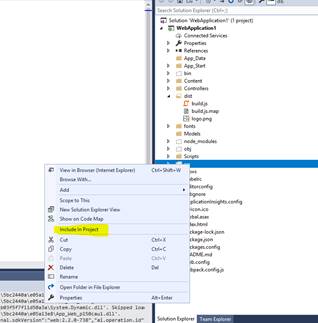
Add new files into MVC projects.
In VS, include following directory and files to the project: dist,
src .babelrc, package-lock.json,
package.json and webpack.config.js
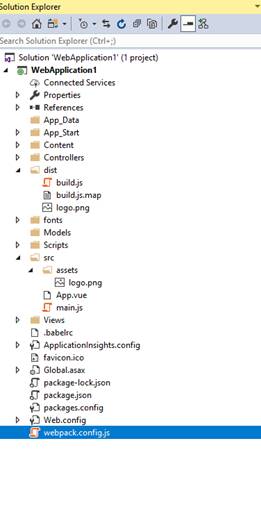
Updated project, note index.html is not included.
Change home index view to use Vue
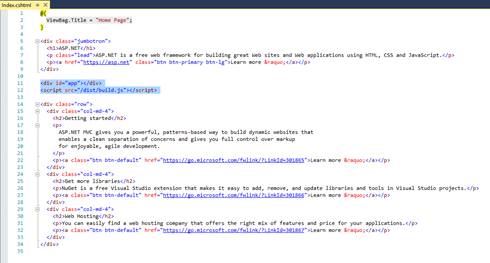
Open index.html file (not included in project), and copy over the two lines code

And paste them into index.cshtml file under views\home folder.
Result
Now run the application in VS, we now have Vue running inside an MVC application. Basically, we combined the two pages into one.

In command window, type: nmp run dev
We still get just this

As in node environment, Vue app loads index.html, it has no knowledge about ASP.Net stuff, it is the same thing in the last time we run Vue.
Setting up Webpack Dev
Server Proxy
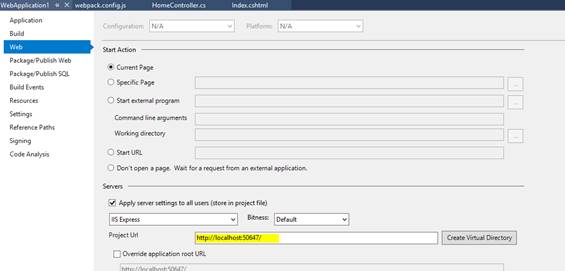
Find out MVC port number
Go to properties of our web project, under web tab, copy the project Url somewhere.
Modify webpack.config.js
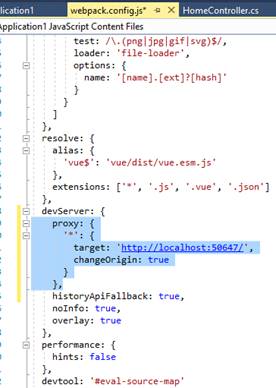
Modify webpack.config.js, add a proxy into devServer section:
devServer: {
proxy: {
‘*’: {
target: ‘http://localhost:50647/‘,
changeOrigin: true
}
},
historyApiFallback: true,
Save changes and run the project in VS, leave it running. Pay attention to browser port number.
Test run
In command window, do npm run dev again, exactly same page open up in browser again, but with port 8080.
There are two web servers running, one Visual Studio IIS express, and the other one is webpack dev server. The webpack server is also serving as proxy to IIS express server, so all ASP.Net stuff showing up now. This provides hot reloading, a great feature for developing Vue applications.

A Hello World Fun Test
Experience hot loading
With the MVC app running in IIS express, in VS open app.vue
file (right click open with HTML editor)
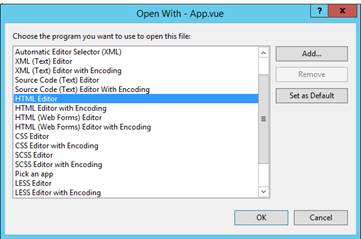
Add two lines of code as

Save the file, see the changes in node dev server. Also note that the IIS express page stays the same.
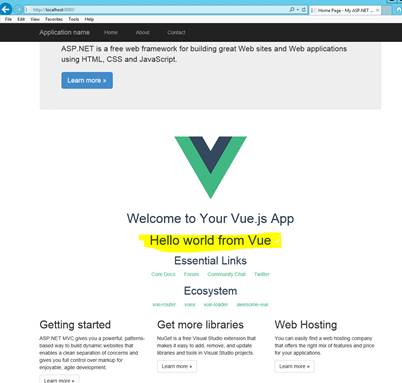
A mixed hello messages from different sources
Stop both web servers.
Modify app.vue,
make the helloMessage as:
helloMessage: ‘Hello world from Vue’ + window.mydata
Modify index.cshtml, add
<script>
window.mydata= ‘, MVC Vew and @ViewBag.Message‘;
</script>
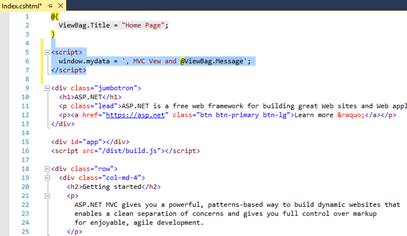
Modify HomeController.cs,
add
ViewBag.Message = “Home controller.”;
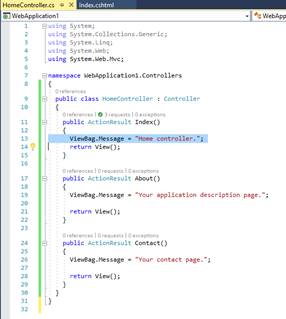
Test Runs
Run app in VS, notice there is no change.
npm run dev
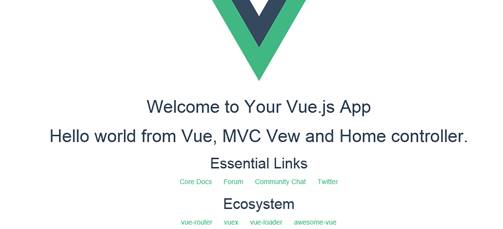
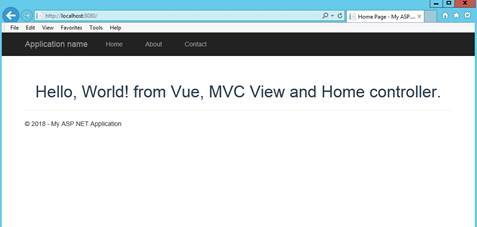
Stop everything, and do npm run build, restart application in VS, refresh if needed. See what you got.
Clean up
Remove all html tags from home index view and app.vue except what we added.


We now have a cleaner MVC+Vue.js application, this can be used as a start point for many projects.
Thanks for reading.
 WYSTech